
Backup GitHub Repositories with Gitea Mirror
Why homelabbers care
GitHub is great—right up until an outage, SSO change, or account lockout strands your projects. Gitea Mirror keeps a self-hosted copy of everything (history, metadata, LFS) so you can keep working locally. This playbook walks through the minimal Docker setup the project ships with and shows how to prove your backups actually work.
This playbook covers the default path, GitHub into Gitea. Since 3.30 the source can also be GitLab or Codeberg, Forgejo and Gitea, and since 3.31 the destination can be Forgejo, or GitHub or GitLab through a push engine. Those paths are marked beta in the settings.
Requirements
- Docker Engine and Compose on the host that will run the mirror
- A GitHub personal access token (classic) with
repo, plus theread:orgcheckbox underadmin:orgwhen you mirror organizations (leave the write/admin boxes unchecked) - A self-hosted Gitea instance (can be on the same box) and admin or org owner credentials
- Open ports 4321 (web UI) and 3000 (default Gitea) inside your network
Step-by-step
1. Clone the repo and start the stack
git clone https://github.com/RayLabsHQ/gitea-mirror.git
cd gitea-mirror
docker compose -f docker-compose.alt.yml up -d
The alt compose file ships with sane defaults for a single-node backup mirror. It stores data in ./data. To use a different path, edit the volume mapping (for example - /srv/gitea-mirror:/app/data).
Verify the containers:
docker compose -f docker-compose.alt.yml ps
docker compose -f docker-compose.alt.yml logs -f gitea-mirror
Wait for the Runtime server listening line in the logs before moving on.
2. Generate tokens and connect GitHub
- Create a GitHub personal access token (classic) with
repoenabled and, inside theadmin:orgsection, checkread:orgso the mirror can list organization repositories—leavewrite:organdadmin:orgunchecked. - Log in to Gitea and create an access token for an admin/owner account with
write:repositoryandwrite:organization(the second scope lets the mirror create destination organizations). - Visit
http://<host>:4321and sign up—the first user becomes admin. - Complete the setup wizard:
- Paste the GitHub PAT and Gitea URL/token.
- Choose which GitHub owners (user/org) to track.
- Leave the sync interval at the default (daily) to start; you can shorten it later.
3. Stage your first backup job
On the dashboard:
- Click Mirror Repository for a small test project.
- Open Gitea and confirm the mirror appears with the right owner/org.
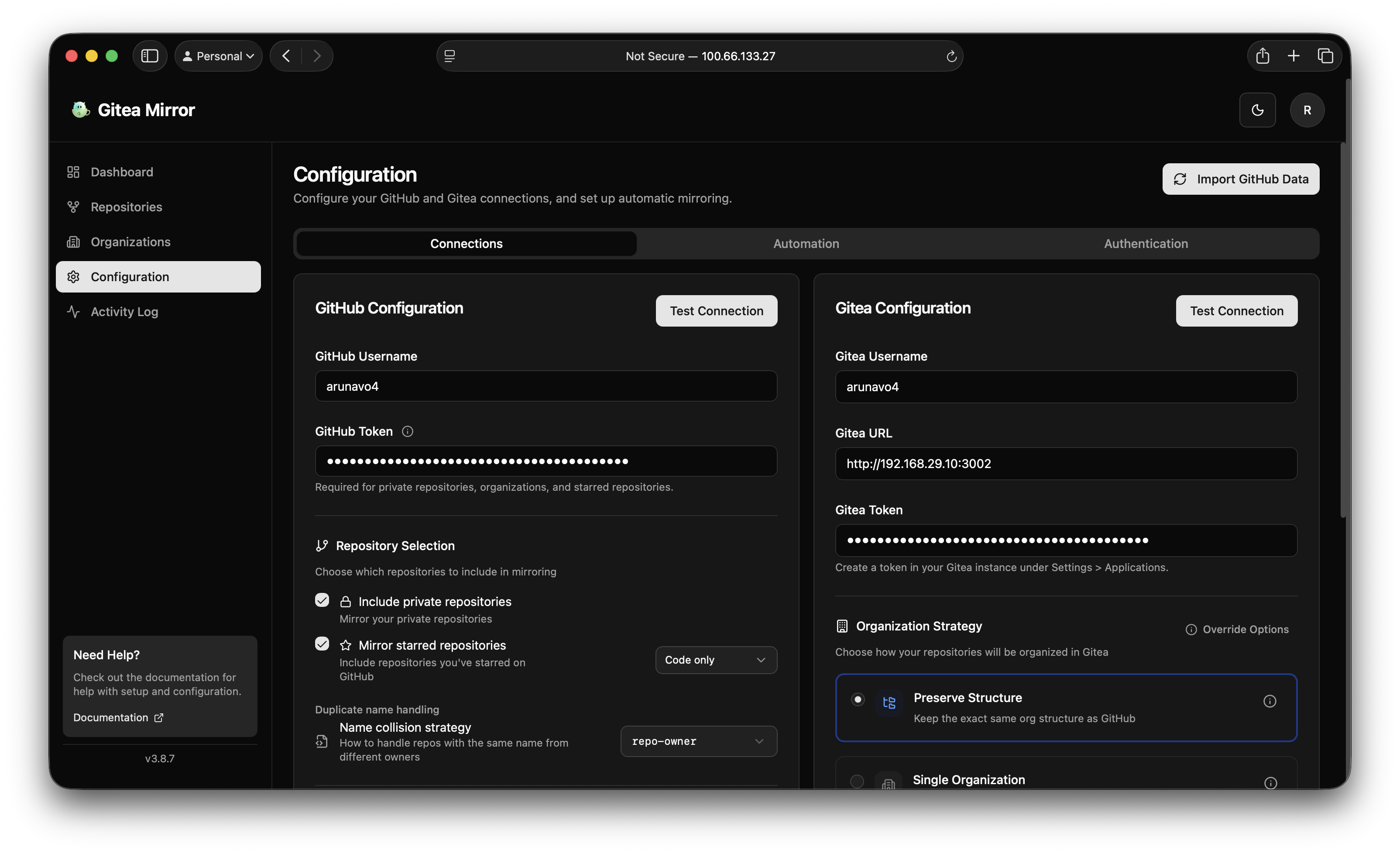
- In Configuration → Connections, open the Mirror Content section to enable Repository metadata and Git LFS if you rely on issues, wikis, or large assets. Metadata brings issues and pull requests along; LFS has its own guide worth reading before you enable it account-wide.
For broader coverage, switch the organization strategy to Preserve Structure so Gitea mirrors your GitHub org layout automatically.
4. Turn on automatic syncs and cleanup
Open Configuration → Automation in the web UI.
- Enable Automatic syncing and pick an interval that matches how fresh you want the mirror (start with
60 minutes, shorten for active repos). - Leave the scheduler enabled—auto-discovery ships with it, so new GitHub repositories and stars are pulled in on the next pass.
- If you want the mirror to tidy up when GitHub repos disappear, enable Handle orphaned repositories and keep the action on Archive so history stays intact.
Configure the scheduler and cleanup policies from the Automation tab so GitHub mirrors stay fresh without manual cron jobs.
5. Prove the backup works
Treat the mirror like any other DR asset:
- Temporarily block outbound GitHub access on your machine.
- Clone from Gitea instead:
git clone http://<gitea-host>/<owner>/<repo>.git. - Confirm commit history, tags, releases, and issues exist.
- Remove the block and document the restore steps in your homelab wiki.
Health checks & monitoring
- The container exposes
/api/health; add it to Uptime Kuma, Healthchecks.io, or Prometheus. - Mirror failures surface in the activity log; consider exporting them through the
/api/eventsendpoint. - Watch disk usage on your Gitea host—that’s where the mirrored repos and LFS blobs actually live. Gitea Mirror’s own
data/volume stays small (SQLite database plus optional pre-sync backup bundles).
Hardening tips
- Put the stack behind a reverse proxy (Traefik, Caddy, Nginx) and enable TLS.
- Rotate both GitHub and Gitea tokens quarterly; the UI will flag expired credentials.
- Snapshot the
data/volume (ZFS/BTRFS) or back it up withresticso the mirror survives host failure.
Next steps
- Promote the mirror to read-only users who do not need GitHub access.
- Layer on the Helm or Proxmox LXC playbooks when you outgrow the single-node setup.
FAQ
Does Gitea Mirror copy issues, pull requests, releases, and LFS?
Yes. Enable Repository metadata, Releases & tags, and Git LFS objects from Configuration → Connections → Mirror Content. Pull requests are mirrored as enriched issues with linked branches and metadata.
How often should I sync GitHub backups?
Most homelabs pick 30–120 minutes. Faster schedules improve RPO but use more GitHub API quota; adjust by org/repo if only a few projects are critical.
Where are backups stored and how do I restore?
The mirrored repositories live in your Gitea instance’s storage—Gitea does the actual mirroring. Gitea Mirror’s data/ directory holds its SQLite database (configuration, job history) and optional pre-sync backup bundles. Restore code by cloning from Gitea; restore the mirror service by moving the data/ volume to a fresh deployment and signing back in.
Related guides
- Automate the schedule so backups run without you
- GitHub API rate limits and why frequent syncs stay cheap
- Migrate to Gitea entirely when a backup grows into an exit
- Compare backup tools if you are still choosing an approach