
Quick Start
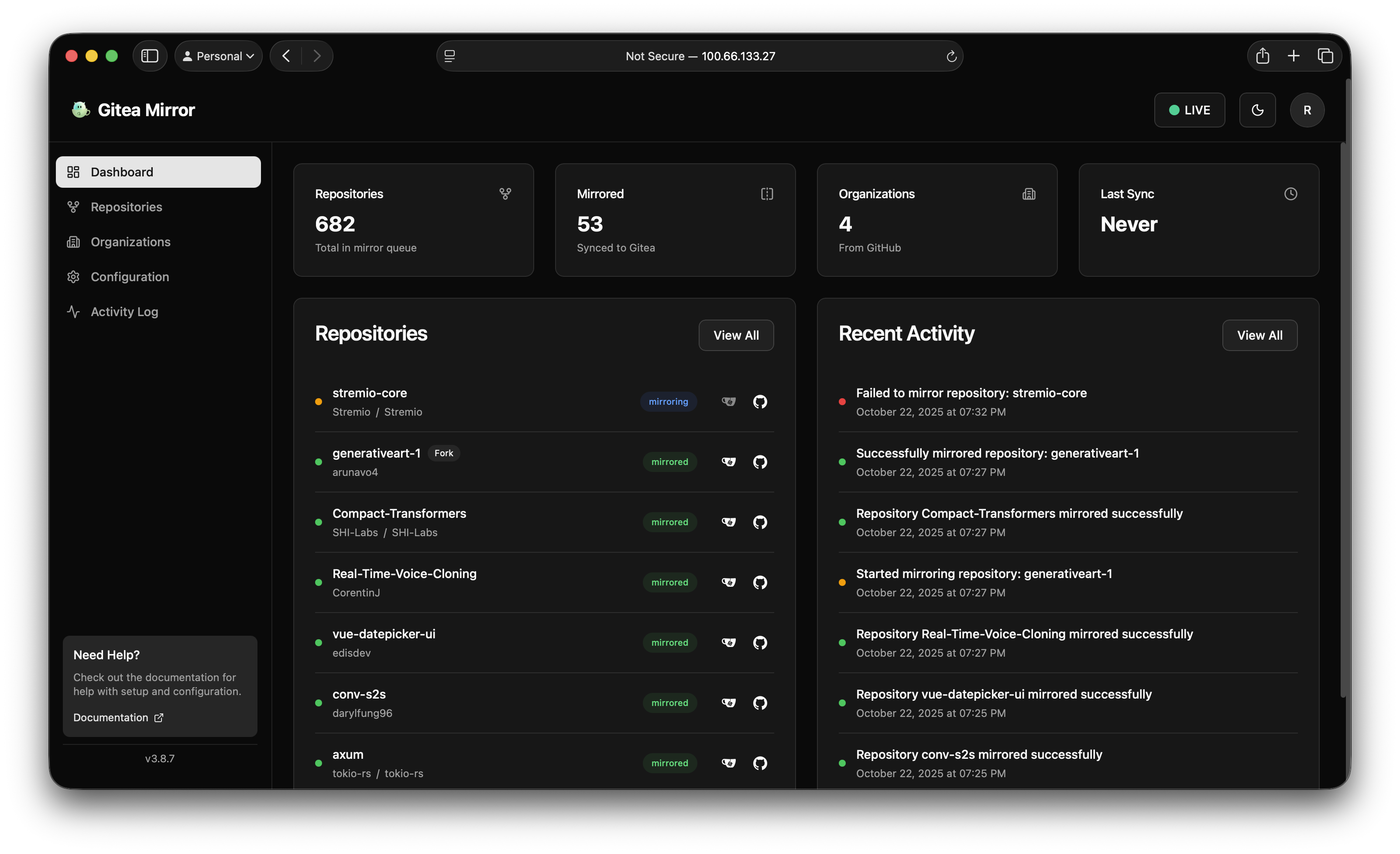
Gitea Mirror ships as a prebuilt multi-architecture container image. The fastest path is to pull that image and configure everything else through the web interface after it starts. This page covers the Docker path first, then building from source, then running directly on Bun.
This guide walks the supported path, GitHub to Gitea. GitLab and Gitea / Forgejo as sources, and Forgejo, GitHub and GitLab as destinations, are available as beta options in the same two dropdowns; see Sources and Destinations once the app is running.
Requirements
Before you start, you need:
- A GitHub personal access token with the
repoandadmin:orgscopes. - A Gitea or Forgejo instance you can reach from wherever Gitea Mirror runs, plus an access token for it.
- Docker with the Compose plugin, or Bun 1.2.9 or newer for a bare metal install.
You do not need any of the GitHub or Gitea details at container start time. Gitea Mirror comes up with an empty configuration and you fill it in through the Configuration page.
Docker with the prebuilt image
This is the recommended setup. It uses ghcr.io/raylabshq/gitea-mirror:latest and stores the SQLite database in a ./data directory next to your compose file.
Create a docker-compose.yml:
services:
  gitea-mirror:
    image: ghcr.io/raylabshq/gitea-mirror:latest
    container_name: gitea-mirror
    restart: unless-stopped
    ports:
      - "${PORT:-4321}:4321"
    user: ${PUID:-1000}:${PGID:-1000}
    volumes:
      - ./data:/app/data
    environment:
      - NODE_ENV=production
      - HOST=0.0.0.0
      - PORT=4321
      - BETTER_AUTH_SECRET=${BETTER_AUTH_SECRET}
      - BETTER_AUTH_URL=${BETTER_AUTH_URL:-http://localhost:4321}
      - PUBLIC_BETTER_AUTH_URL=${PUBLIC_BETTER_AUTH_URL:-http://localhost:4321}
      - BETTER_AUTH_TRUSTED_ORIGINS=${BETTER_AUTH_TRUSTED_ORIGINS:-http://localhost:4321}
Then start it:
docker compose up -dOpen http://localhost:4321 and create an account. The first account to sign up becomes the admin.
Note:
PUIDandPGIDcontrol the user the container runs as. They must match the owner of the./datadirectory on the host, otherwise the container cannot create the database file. On most Linux systems the first non-root user is1000:1000, which is the default.
Using the compose files in the repository
If you clone the repository you get two ready-made compose files. docker-compose.alt.yml is the minimal one, matching the example above:
git clone https://github.com/RayLabsHQ/gitea-mirror.git
cd gitea-mirror
docker compose -f docker-compose.alt.yml up -d
docker-compose.yml is the full version. It builds from source by default and exposes every supported environment variable, which is useful when you want the whole configuration declared in one file rather than entered through the UI.
Secrets
BETTER_AUTH_SECRET signs session cookies and ENCRYPTION_SECRET encrypts your GitHub and Gitea tokens at rest. If you leave either unset, the container entrypoint generates a random value on first boot and saves it inside the data volume, at /app/data/.better_auth_secret and /app/data/.encryption_secret respectively. That means restarts keep working, but the secrets only survive as long as the volume does.
For anything beyond a quick trial, set them explicitly so they are backed up with the rest of your configuration:
openssl rand -base64 32   # BETTER_AUTH_SECRET
openssl rand -base64 48   # ENCRYPTION_SECRET
Warning: If you lose
ENCRYPTION_SECRET, the stored GitHub and Gitea tokens can no longer be decrypted and you will have to re-enter them.
Running behind a reverse proxy
When you access Gitea Mirror through a proxy, the auth layer needs to know its public origin. Set all three of these to the external URL:
environment:
  - BETTER_AUTH_URL=https://gitea-mirror.example.com
  - PUBLIC_BETTER_AUTH_URL=https://gitea-mirror.example.com
  - BETTER_AUTH_TRUSTED_ORIGINS=https://gitea-mirror.example.com
These must be origins only, meaning scheme and host with no path. If you serve the app under a path prefix such as https://git.example.com/mirror, put the prefix in BASE_URL=/mirror and keep the three auth variables as the bare origin. See the configuration guide for the full explanation.
Build from source with Docker
If you want to build the image yourself, for example to pin a commit or add your own patches, clone the repository and use the included Dockerfile:
git clone https://github.com/RayLabsHQ/gitea-mirror.git
cd gitea-mirror
docker compose up -d --build
The repository’s docker-compose.yml already declares a build section pointing at the Dockerfile, with linux/amd64 and linux/arm64 as target platforms. The build is multi-stage: it installs dependencies and runs the Astro build, compiles a static git-lfs binary, then copies both into a slim runtime layer based on the official Bun image.
Bare metal with Bun
Running directly on the host is useful for development and for environments where you would rather not use containers.
Install Bun 1.2.9 or newer:
curl -fsSL https://bun.sh/install | bashThen clone, install dependencies, and initialize the database:
git clone https://github.com/RayLabsHQ/gitea-mirror.git
cd gitea-mirror
bun run setup
bun run setup runs bun install followed by the database initializer. To start a development server with hot reload:
bun run devFor a production run, build first and then start the runtime server:
bun run build
bun run start
The dev server and the production server both listen on port 4321 by default. bun run start runs scripts/runtime-server.ts, which reads HOST, PORT, and BASE_URL from the environment.
Note: Outside Docker there is no entrypoint script generating secrets for you. Set
BETTER_AUTH_SECRETandENCRYPTION_SECRETin your environment or in a.envfile before starting, otherwise sessions and token encryption fall back to insecure development defaults.
First run
Whichever install path you took, the first-run flow is the same:
- Open the app at
http://localhost:4321, or at whatever URL you configured. - Sign up. The first account created becomes the admin account.
- Go to the Configuration page and fill in the two connection cards on the Connections tab. Leave the Source dropdown on GitHub and the Destination dropdown on Gitea, enter the username and token for each, and use the Test buttons to confirm both sides authenticate.
- Choose a mirror strategy, which decides where repositories land in Gitea.
- Import your GitHub repositories, then mirror them. Once repositories are imported the source locks, and once one is mirrored the destination locks; changing either later asks for confirmation.
- Optionally, turn on scheduled syncing on the Automation tab so new commits and new repositories are picked up without manual action.
Verifying the deployment
Gitea Mirror exposes a health endpoint at /api/health that reports application status, database connectivity, and the state of the job recovery system:
curl http://localhost:4321/api/healthThe container image also has a built-in HEALTHCHECK that polls this endpoint, so docker ps shows the container as healthy or unhealthy without any extra work on your side. See Advanced topics for the full response shape.
Where to go next
- Configuration covers the Configuration page tab by tab, plus environment-based pre-configuration.
- Sources and Destinations cover the hosts beyond GitHub and Gitea.
- API and API keys is for driving the app from scripts and CI.
- Environment variables is the complete reference.
- CA certificates explains how to trust a self-signed or privately signed Gitea instance.
- The use-case guides cover platform-specific installs (Proxmox, Unraid, Helm) and deeper topics like Git LFS, issue and PR mirroring, and a full migration to Gitea.